Skip to content
Switching

Switch without typing your client list in again.

You bring your client list as a CSV: you map the columns yourself, see every row before anything is imported and decide on duplicates yourself. If you’re coming from DATEV or Lexware, Sumaro also imports your outgoing invoices with their real line items – each with its own Sumaro number, so the invoice number series stay separate. Estimates and receipts stay in the old program, and for good reason.

  • Preview before importing
  • Duplicates are flagged
  • Try free for 30 days
Preview before importing
Duplicates are flagged
Try free for 30 days
Controlled approvals
The problem behind the problem

Switching rarely fails because of the software.

It fails on the evening when two hundred client addresses need to be typed in, and on the question of what happens to this year’s invoices. The import takes care of the first. For the second, there is a better answer than “bring everything”: a cut-over date.

How Sumaro solves it

Three steps, and not one of them overnight.

Step 01

Export your client list and bring it over

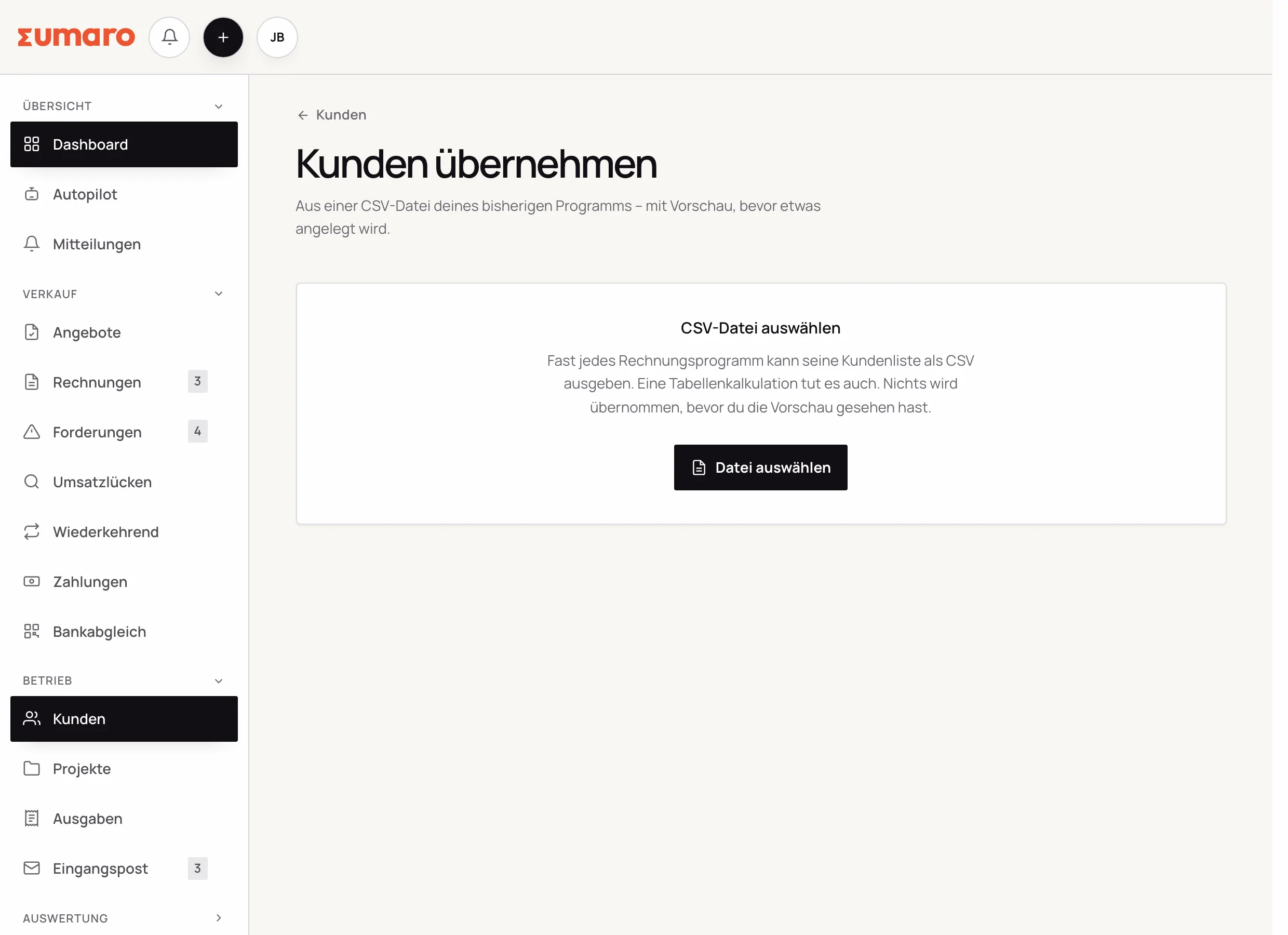
Almost every invoicing program can export its clients as a CSV; a spreadsheet works too. In Sumaro, you map the columns to the fields – Sumaro suggests, you decide. Before anything is imported, you see every row with its row number from the file. Tested on a real Lexoffice export: 35 columns, umlauts, country codes – everything arrived, and nothing was created without a preview.

  • Address, email, phone, VAT ID and client number
  • Client numbers stay recognizable – Sumaro puts its prefix in front (10004 → KD-10004), and you can turn that off
  • Columns Sumaro doesn’t track go into the notes, labeled
See the workflow
Sumaro client import: choosing a CSV file, with a preview before anything is created
Step 02

Set a cut-over date

From what date are new invoices created in Sumaro? This one decision prevents most problems: duplicate numbers, two versions of the truth about the same open amount, unclear ownership when a client has a question. Before the cut-over date, the old program applies; after it, Sumaro.

  • Set up Sumaro’s number series to match
  • Keep following up on receivables up to the cut-over date in the old program
  • No months of running both side by side
See the workflow
Step 03

Import invoices, keep the rest readable

If you’re coming from DATEV or Lexware, there is a dedicated import for your outgoing invoices: the real line items come from the attached PDF, and each invoice gets its own consecutive Sumaro number. The old number is stored only so you can recognize the invoice, and the number series don’t mix. Sumaro does not import estimates and receipts: there is no such mechanism for them, and a reconstruction would produce a document that looks real and isn’t. Check with your tax advisor where the originals are kept during the retention period.

  • Outgoing invoices from DATEV/Lexware: a dedicated import with real line items and a new Sumaro number
  • Estimates and receipts stay in the old system or the archive
  • Clarify retention periods with your tax advisor
  • Keep access to the old program until the retention period ends
See the workflow
Finance cockpit · Time saved

Less follow-up work after every job. More time for your business.

Sumaro brings automation, AI help and a financial overview into one workspace. You copy less from one place to another and review the items where your decision really counts.

The actual time saved depends on your workflow. That is why you can measure it during the trial: time your current monthly routine once, then run the same client case in Sumaro and compare the review steps that remain.

AI help for estimates requires an enabled AI configuration. Sumaro deliberately describes automation and AI separately.

See Autopilot and the finance cockpit →
01

Recurring invoices

Sumaro creates due invoice drafts in advance, with service period and payment terms, for you to review.

02

Incoming payments

You import bank transactions as a CSV. Sumaro reconciles the imported transactions and matches unambiguous incoming payments to open invoices.

03

Reminders and dunning letters

The daily dunning run prepares the letters that are due. Nothing is sent until you approve it.

04

Receipts inbox

Receipts from the monitored mailbox are collected regularly in one place for review.

05

Financial bearings

Payment horizon, revenue gaps and an expected tax reserve show what matters next.

In short: Sumaro cuts the business follow-up work where it repeats every month. The Autopilot prepares plannable tasks, the AI helps with estimates, and the dashboard organizes incoming payments, open items, revenue gaps and the tax reserve. Critical steps deliberately stay reviewable, so you save time without giving up control.

Questions before you start

What you want to know before the trial.

No feature promise without context. Here is what Sumaro prepares, what you check and how getting started works.

What data does Sumaro take over when you switch?

Client master data from a CSV: company, salutation, first and last name, email, phone, address, VAT ID, client number and notes. If you’re coming from DATEV or Lexware, you can also import your outgoing invoices with their real line items and a Sumaro number of their own. Estimates, receipts and payments are not imported.

What happens to clients that already exist in Sumaro?

They are flagged in the preview and skipped by default – recognized by VAT ID, email, company or client number. You can still tick individual rows.

Do my existing client numbers carry over?

Yes. The digits stay, and Sumaro puts its prefix in front – 10004 becomes KD-10004 – so the list stays consistent and the series continues: the next new client gets the number after the highest imported one. If you need the number exactly as it was, turn off the adjustment in the preview. Rows without a number get the next free one.

Is there a ready-made import for my current program?

No. The import reads any CSV, but there are no tested profiles for individual programs – a profile that was never tested on a real export would be a promise without backing. Mapping the columns takes a minute.

The next step

Try the switch with your real client list.

Export it from your current program and upload it. The preview shows you what would arrive – nothing is created until you confirm.