Skip to content
Your first invoice

Your first job. Now your first invoice.

You have just started out and want to bill for your work? Enter your business details, add the client and create a draft invoice. These three steps take you through getting started in Sumaro.

  • Try free for 30 days
  • Ari for draft invoices
  • Sent after your review
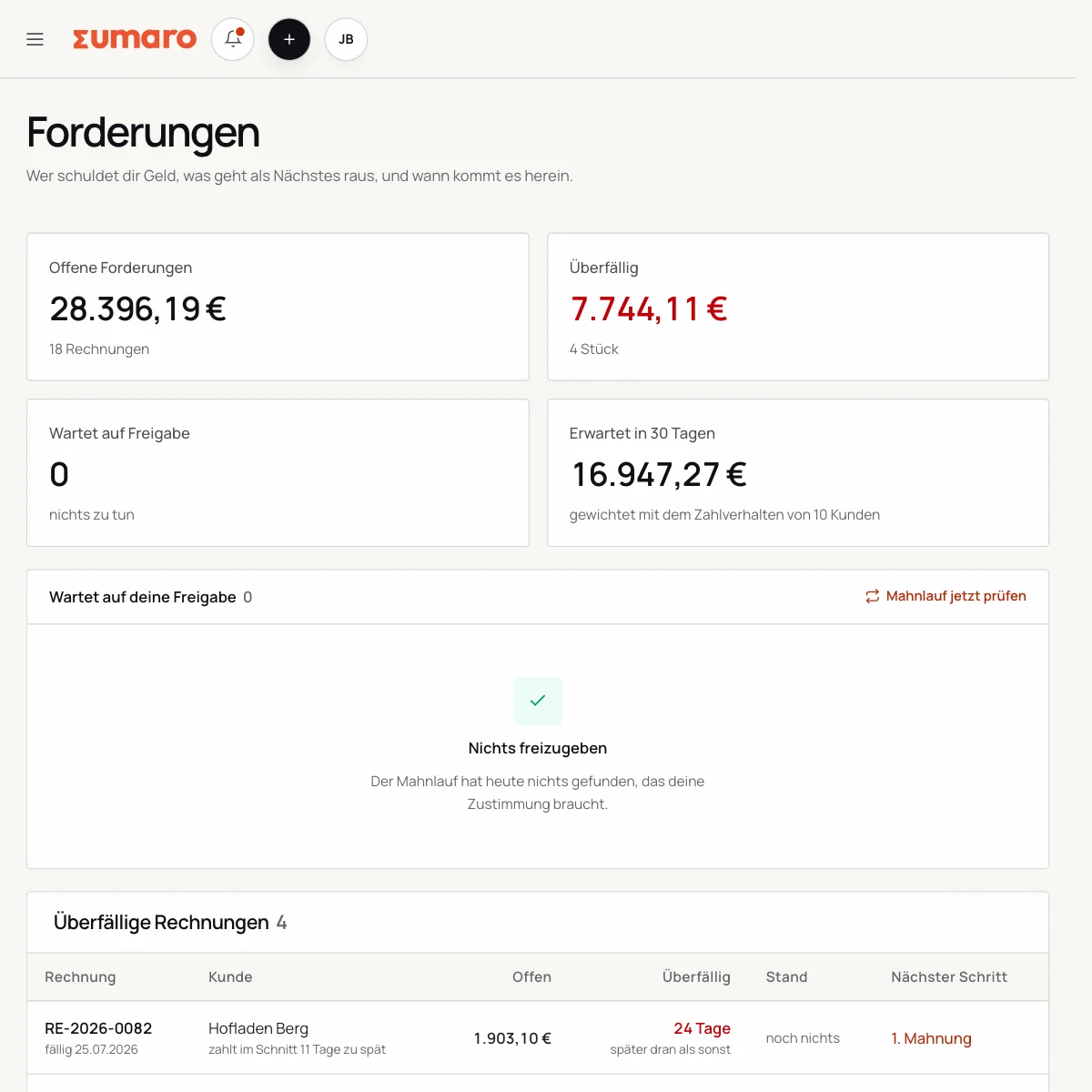
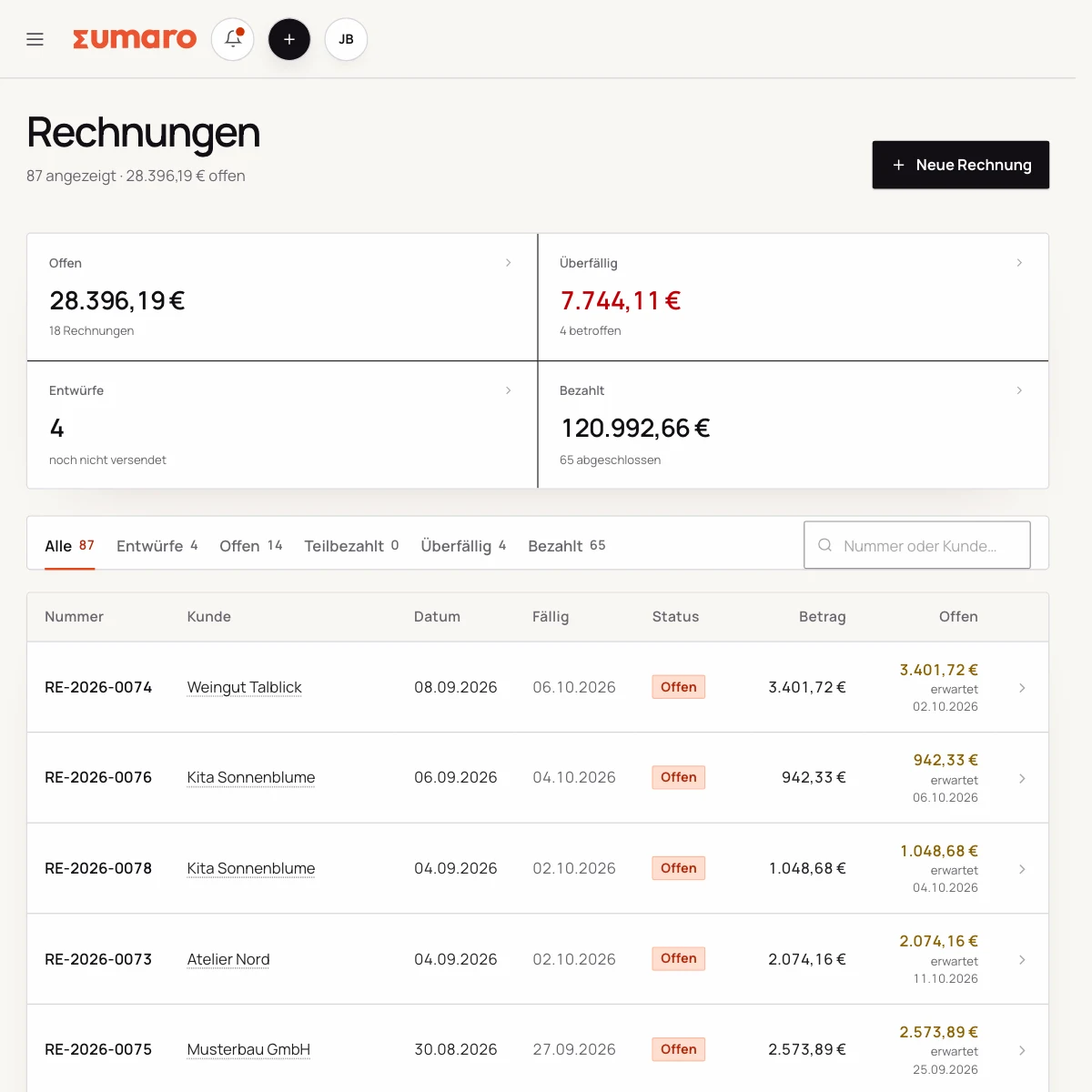
Sumaro invoice overview with fictional sample data
Real Sumaro interface · fictional sample data
Try free for 30 days
Ari for draft invoices
Sent after your review
Controlled approvals
The problem behind the problem

Your first invoice needs more than an amount.

Who receives the invoice, what was delivered and when, and which tax details apply to you? If you settle these questions before sending, you already have a usable basis for the next job. The workflow below shows you the setup in Sumaro.

How Sumaro solves it

Three steps to a draft invoice you have checked.

Step 01

Enter your business details and settings

Start with your business profile: name, address, payment details and the tax details that apply to you. Set the number range for your invoices. Being newly self-employed does not automatically mean the small business rule (Kleinunternehmerregelung) applies. Clarify any uncertain tax details before sending.

  • Complete your business profile
  • Check your tax setting
  • Prepare your invoice numbers
See the workflow
Step 02

Add the client and describe the service

Enter your client and their billing address. Then describe what you delivered, at what price and for which period. You can enter the line items yourself or ask Ari for a draft. Eight hours at €95 comes to €760 before any VAT that may apply.

  • Check the client’s address
  • Enter service, quantity and price
  • Add the service period
See the workflow
Real Sumaro interface with fictional sample data: adding the client and describing the service
Step 03

Check the draft and keep an eye on payment

Check the preview, recipient, line items, tax details and payment term before you send the invoice. Agree the required invoice format with your client. After sending, you keep track of the due date and payment in Sumaro. That does not make the invoice get paid automatically.

  • Read the preview before sending
  • Clarify the required invoice format
  • Follow up on the open payment
See the workflow
Real Sumaro interface with fictional sample data: checking the draft and keeping an eye on payment
Questions before you start

What you want to know before the trial.

No feature promise without context. Here is what Sumaro prepares, what you check and how getting started works.

Can I practice first without sending an invoice?

Yes. Create a client that is clearly marked as a test and prepare a draft. Check it before you use real client details or send anything. You don’t need to import anything from an old program for your first steps.

How does bank reconciliation work?

You import bank transactions as a CSV file and check the detected columns. Clear incoming payments can be matched to open invoices. There is currently no direct bank connection. Test your bank’s CSV export before you decide.

What does Sumaro cost after the trial?

You try Sumaro free for 30 days. The trial ends on its own. Only if you actively choose to subscribe do you pay €19 per month plus VAT. You can cancel the subscription any month.

The next step

Prepare your next client invoice in Sumaro.

Test the workflow with one draft, then decide whether Sumaro is right for you. Free for 30 days; the trial ends on its own.